How to Pause Instagram Reels: Quick & Easy Guide
Ever tried to read the tiny text on a Reel, copy a recipe step, or catch a fast meme punchline—only for the video to keep playing like it’s in a hurry? You’re not alone. I had that problem too. Instagram Reels auto-play by design, and there’s no big obvious “Pause” button staring back at you.
So I dove in and found the answer to all of your questions. In this beginner-friendly guide, you’ll learn:
- Exactly how to pause Instagram Reels on mobile and desktop
- Why the pause feature feels hidden
- How it compares to TikTok
- What to do if it’s not working.
Why Instagram Doesn’t Show a Pause Button
Instagram Reels were built for fast, continuous scrolling. The goal? Keep viewers engaged and watching more content. Because of that:
- Reels auto-play by default.
- There’s no permanent on-screen pause button (for most users).
- A quick tap often mutes audio instead of pausing.
- The pause function is hidden behind a gesture.
Meta (Instagram’s parent company) has tested easier pause controls to make Reels more user-friendly. But currently, most users still rely on the original gesture-based method.
If you’ve been wondering why the pause feature feels confusing—it’s not you. It’s design.
How to Pause Instagram Reels on Mobile (iPhone & Android)
Good news: You can pause Reels. The trick just isn’t obvious.
Method 1: Tap and Hold (The Official Hidden Method)
This is the most reliable way to pause Instagram Reels.
Step-by-Step Guide
- Open the Instagram app.
- Scroll to any Reel.
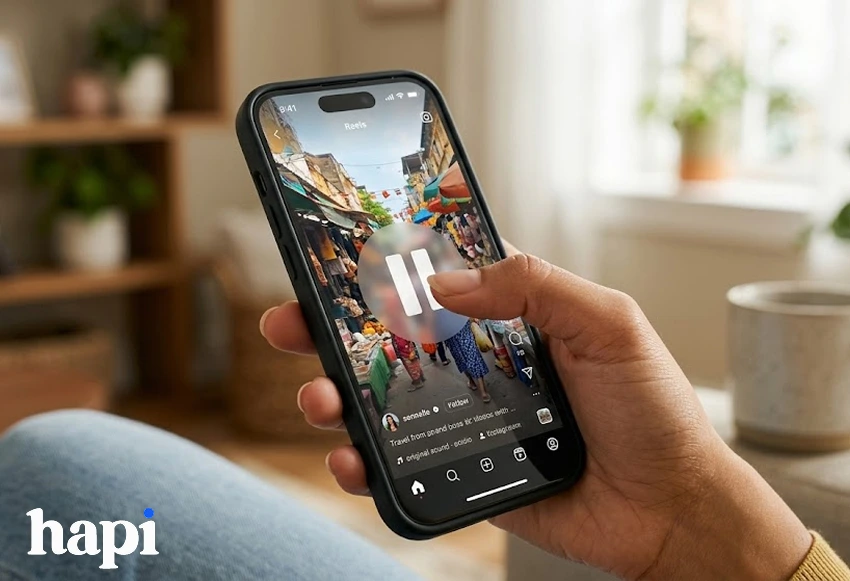
- Tap and hold anywhere on the video screen.
- The Reel pauses as long as your finger stays pressed down.
- Release your finger to resume playback.
That’s it.
Why It Works
Instagram built pause into a long-press gesture instead of a visible button. It’s subtle but fully functional.
What If Tap and Hold Doesn’t Work?
Try these quick fixes:
- ✅ Update your Instagram app from the App Store or Google Play.
- ✅ Close and reopen the app.
- ✅ Restart your phone.
- ✅ Clear cache (Android only).
- ✅ Log out and log back in.
Sometimes Instagram runs feature tests, meaning playback behavior can slightly vary between users.
How to Pause Instagram Reels on Desktop / Browser
If you’re using Instagram on a laptop or PC, you may have an easier experience.
Step-by-Step for Desktop
- Go to Instagram.com and log in.
- Click on a Reel from your feed.
- Click the center of the video.
- In many browsers, this pauses playback.
- Pressing the spacebar may also pause the Reel.
⚠️ Note: Behavior can differ between Chrome, Safari, and Firefox.
Mobile vs Desktop Pause Comparison
Below is a clear breakdown of how pause behavior differs across platforms:
| Platform | How to Pause | Limitations | Best For |
| iPhone / Android | Tap and hold | Must keep finger pressed | Quick pauses |
| Desktop Browser | Click video | Not consistent in all browsers | Longer viewing |
| Spacebar (Desktop) | Press spacebar | May scroll page instead | Hands-free pause |
| Screenshot Method | Pause + screenshot | Not true pause | Saving frames |
If you regularly watch tutorials or text-heavy Reels, desktop may offer slightly better control.
Instagram Reels vs TikTok: Playback Comparison
One reason users search “How to Pause Instagram Reels” so often is because TikTok makes it easier.
Here’s how they compare:
| Feature | Instagram Reels | TikTok |
| Tap to Pause | Usually requires hold | Single tap pauses |
| Visible Pause Icon | Rare / experimental | Always visible |
| Mute on Tap | Often | No |
| Playback Scrubbing | Limited | Full progress bar |
| User Control Level | Moderate | High |
Why This Matters
- TikTok offers clearer playback controls.
- Instagram prioritized seamless scrolling over manual control.
- Meta has tested adding a more obvious pause function to improve user experience.
For beginners, Instagram’s long-press method feels less intuitive compared to TikTok’s single-tap pause.
Alternative Workarounds & Smart Tips
Sometimes you don’t just want to pause, you might want to check out a specific section of the video without having to wait for the reel to replay again.
Here are helpful workarounds:
1. Open Comments to Stop Playback
In some versions:
- Tapping the comment icon may pause the Reel.
- This lets you read text without holding your finger.
2. Use the Progress Bar (If Available)
Some Reels show a progress bar at the bottom, we dive into why not all reels have a progress bar down the line in this article so stick around.
You can:
- Drag backward to rewatch a moment.
- Skip forward.
- Replay specific sections.
3. Screenshot Trick
If you need to capture text or an image frame, you can try:
- Tap and hold to pause.
- Take a screenshot while holding.
- Edit or zoom the image in your gallery.
Great for:
- Recipes
- Workout instructions
- Study notes
- Product names
4. Slow Down Playback (Accessibility Trick)
On some phones:
- Adjust system playback speed settings (accessibility tools).
- This won’t pause fully but may slow motion for easier reading.
Why Some Instagram Reels Don’t Show a Progress Bar
If you’ve noticed that some Reels display a progress bar at the bottom while others don’t, you’re not imagining things. Instagram does not apply playback controls consistently across all videos.
Here’s why that happens:
Instagram Is Constantly Testing Features
Instagram regularly runs A/B tests on user interface elements — including playback controls.
That means:
- Some users see a visible progress bar.
- Others don’t.
- Some can drag to scrub forward or backward.
- Others only see a passive time indicator.
Instagram rolls features out gradually, so two users with the same phone can have different experiences.
Reel Length Affects the Progress Bar
Very short Reels (under 10–15 seconds) often:
- Loop quickly
- Show minimal time indicators
- Don’t allow scrubbing
Longer Reels are more likely to display a visible timeline. Instagram assumes shorter content doesn’t require manual control.
Full-Screen vs Feed View Matters
Where you watch the Reel affects controls.
| Viewing Mode | Progress Bar Behavior |
| Full-screen Reel | More likely visible |
| Feed scroll view | Sometimes hidden |
| Explore tab | More consistent |
| Profile grid view | Less interactive |
If you want better playback control, tap into full-screen mode instead of watching in the feed.
App Version & Device Differences
Outdated apps may not show newer playback controls.
To improve your chances of seeing the progress bar:
- Update Instagram from your app store.
- Restart the app.
- Clear cache (Android).
- Log out and back in.
Older devices may also display fewer playback options.
Regional & Account-Based Testing
Instagram sometimes tests features based on:
- Location
- Account type (business vs personal)
- Beta testers
- Account age
If your friend has a progress bar and you don’t, this is likely due to testing groups, not a bug.
What This Means for You
If your Reel doesn’t show a progress bar, it’s usually because of:
- Feature testing
- Video length
- Viewing mode
- App version
It’s not really a glitch, it’s part of Instagram’s evolving interface.
FAQ: Common Questions About Pausing Instagram Reels
How do I pause Instagram videos from automatically playing?
- Instagram auto-plays Reels and regular videos by default.
- On mobile, you can tap and hold the video to pause Reels.
- On desktop, click the video or press the spacebar (depending on browser).
- Currently, Instagram does not allow disabling auto-play globally, but you can limit it slightly in app settings under Settings → Account → Cellular Data Use → Use Less Data (may reduce autoplay frequency).
Can I pause Reels without holding my finger down?
Not permanently in most versions. Desktop click may allow this, but mobile requires holding.
How to pause Instagram Reels frame by frame?
- Instagram does not have a true frame-by-frame control.
- Workarounds:
- Tap and hold to freeze the frame, then take a screenshot.
- Use the progress bar (on supported Reels) to scrub slowly forward/backward.
- Tap and hold to freeze the frame, then take a screenshot.
- This is ideal for capturing recipes, tutorials, or screenshots of text.
Can I rewind a Reel?
Yes. If the progress bar appears, drag it backward.
Does pausing affect views or engagement?
No. Pausing a Reel does not notify the creator or affect public metrics.
Final Thoughts: Take Control of Your Reels
Now you know exactly how to pause Instagram Reels—whether you’re on mobile or desktop.
Quick recap:
- 📱 Mobile → Tap and hold.
- 💻 Desktop → Click video or try spacebar.
- 🛠 Use comments, progress bar, or screenshots for extra control.
- 🔄 Instagram may introduce easier pause options soon.
While Instagram doesn’t make pause obvious, the feature is there—and now you know how to use it confidently.
Try it right now on your next Reel and see the difference.